
REMOTE SUPPORT
Remote Support for Your Android Box or Firestick
Get expert help with your streaming device without leaving home. We connect securely with Splashtop SOS to set up apps, fix problems, and run updates — while you watch.
How Remote Support Works
1. Install the App
Install the free Splashtop SOS app on your device. It only takes a few minutes using the steps below.
2. Share Your Code
Open Splashtop SOS and give us the 9-digit session code shown on your screen.
3. Click Allow
Click Allow and we connect to your device to help — you can disconnect any time.
No surprises: charges for any of our services are always discussed with you before remote support begins.
Devices That Work With Remote Support
- Android TV boxes
- Amazon Firesticks (with the Downloader app)
- Android phones & tablets
- Windows PC & Mac — download Splashtop SOS from sos.splashtop.com
Want to try a quick fix yourself first? See our How to Stop Buffering guide or learn how to clear your app cache.
Set Up Remote Support on Your Android Box or Firestick
Follow these steps once to install Splashtop SOS. You’ll need the Downloader app. On Android boxes, you can also install Splashtop SOS from the Google Play Store. Tap any screenshot to enlarge it.
STEP 1
Install Splashtop SOS
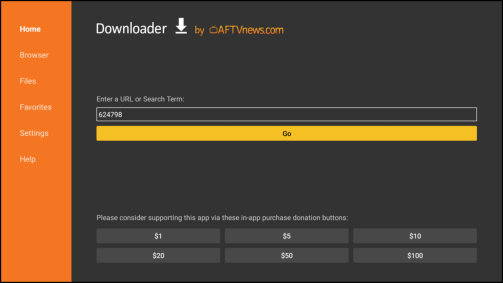
- Open the Downloader app.
- Enter code 624798 and click Go.
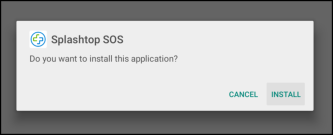
- When the download finishes, click Install.
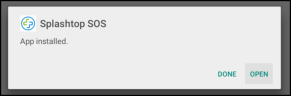
- When it’s installed, click Open.
STEP 2
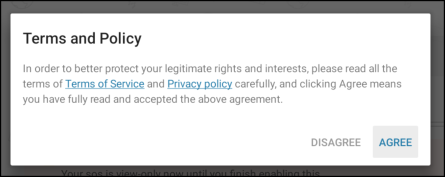
Agree to the Terms
When the app opens, click Agree on the Terms and Policy screen.
STEP 3
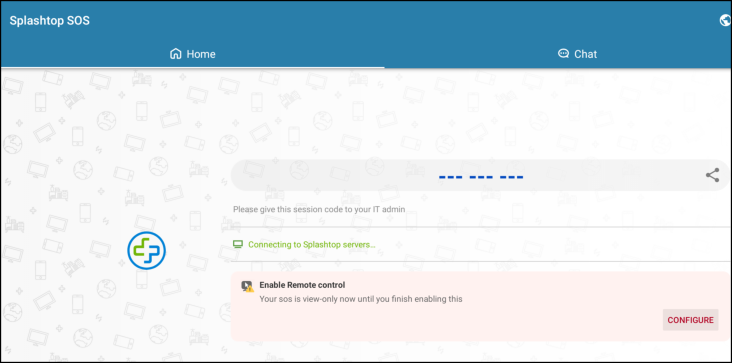
Click Configure
On the Splashtop SOS screen, click Configure to give the app permission to work with your device.
STEP 4
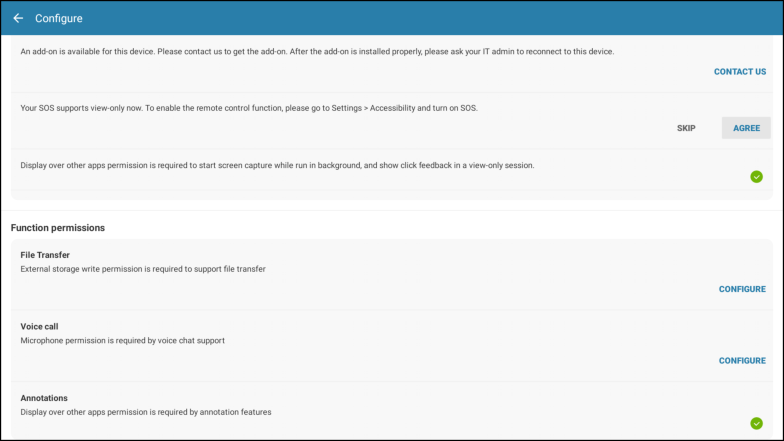
Click Agree
Read the permissions screen and click Agree.
STEP 5
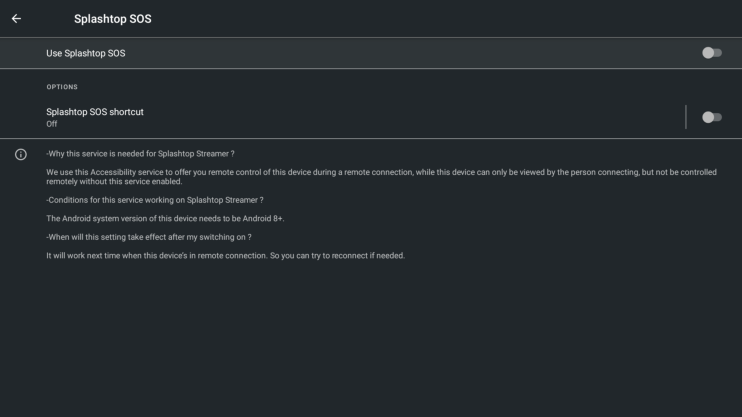
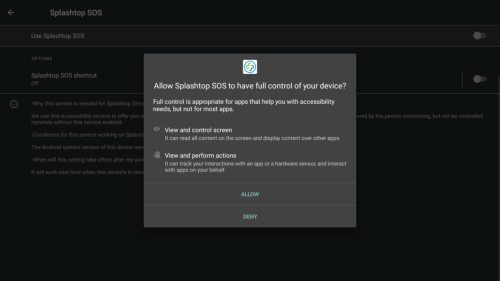
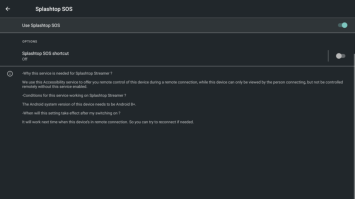
Turn On Splashtop SOS
- Turn on Use Splashtop SOS.
- When asked, choose Allow.
- Splashtop SOS is now activated. Press your remote’s Back button to return to the Downloader app.
STEP 6
Delete the Installation File
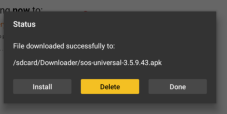
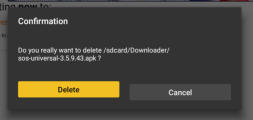
In Downloader, click Delete, then confirm Delete. This removes the install file and frees up storage — the app stays installed.
STEP 7
Install the Splashtop Add-On
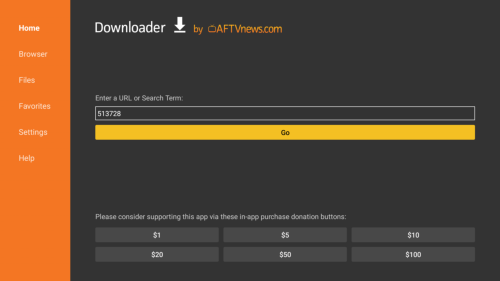
- Click Home in Downloader.
- Enter code 513728 and click Go.
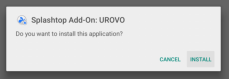
- When prompted, click Install, then Done.
- Delete the installation file again, just like Step 6.
You’re all set! Splashtop SOS stays on your device, so next time you need help you can skip straight to starting a session.
Start Your Remote Support Session
STEP 8
Share Your Session Code
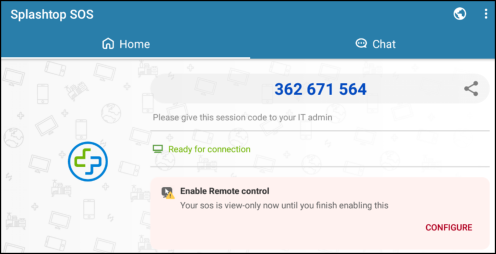
Open Splashtop SOS. Read us the 9-digit session code shown on your screen by phone, text, Telegram or live chat.
STEP 9
Click Allow
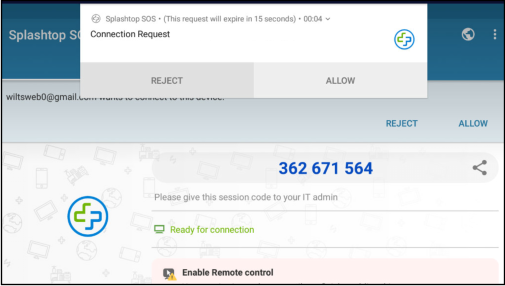
When we enter your code, a prompt appears on your screen. Click Allow to start the support session.
We can now help you set up or learn an app, troubleshoot a problem, or run updates. To end the session at any time, tap Disconnect or close the app.
Protect Yourself While Streaming
A VPN encrypts your connection, protects your privacy on any network, and stops your internet provider from throttling your streams.

Remote Support FAQs
Yes. We can only connect when you open Splashtop SOS, give us your 9-digit session code and click Allow. The connection is encrypted, and you can end the session at any time by tapping Disconnect or closing the app.
No. Every session needs a new code from you and your permission on screen. When you close Splashtop SOS, we no longer have any access.
It depends on what you need, from a quick app fix to a full device update. Charges are always discussed and agreed with you before any remote support begins.
Android TV boxes, Firesticks, Android phones and tablets, and Windows or Mac computers. Computers just download Splashtop SOS from sos.splashtop.com.
On Android boxes you can install Splashtop SOS from the Google Play Store. If you get stuck, contact us by Telegram, email or phone and we’ll walk you through it.
Ready for Help? Book Your Remote Session.
We offer the best streaming support in the business — just ask our customers! Book a time that works for you, or reach out any way you like.
Email • Text • Phone • Live Chat