
Protect your privacy while streaming. Secure your connection today.
Exclusive IPVanish Discount.

1. Initial Setup: Adding Your Provider
OTT Navigator is a media player, meaning you need to link your media service or playlist to watch content.
- Launch the App: Open OTT Navigator on your device.
- Access Settings: Navigate to Settings → Provider (or Providers).
- Select “Add Provider”:
- Xtream Codes API: Choose Xtream Codes, enter your Server URL, Username, and Password, then click Apply / Save.
- M3U Playlist URL: Choose Playlist, paste your M3U URL link, and select Apply.
- MAC Portal: Select MAC Portal, enter the Portal URL and MAC address, then select Apply.
- Load Channels: Allow the app a moment to import your categories, channels, and EPG (TV Guide) data.
2. Navigating the Main Screen & Remote Controls
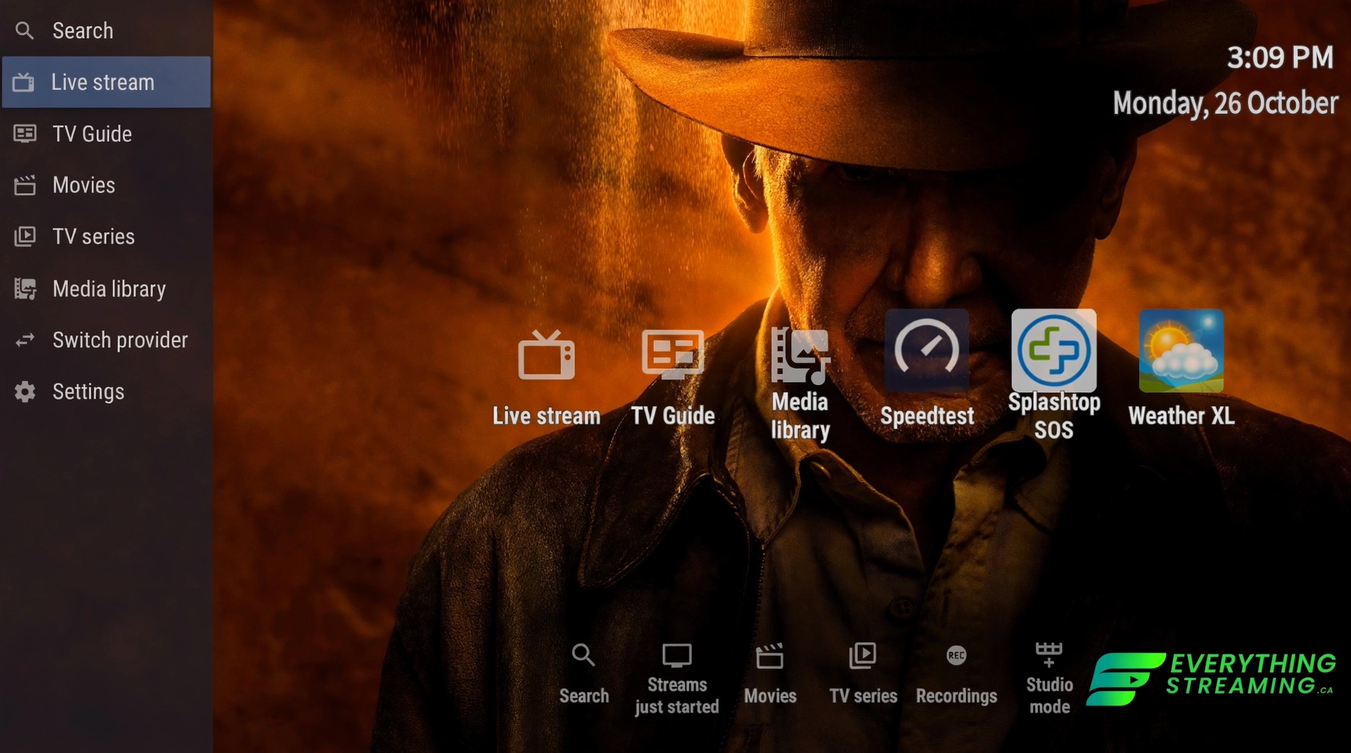
- Main Screen: Access Live Stream, TV Guide, Movies, TV Series, Media Library, Search, and Settings.
- While Watching Live TV:
- Up Button Opens the live channel list or TV guide.
- Down Button: Shows Archive
- Left / Right Buttons: Moves Forward or Backward through the channels.
- Center / OK Button: Brings up the player menu, channel info, and playback overlay.
- Back Button: Hides menus or returns to the app home screen.
- ☰: Menu button: Opens Menu
3. Key Customization Features
Marking Favorites
- Highlight any channel in your list.
- Press and hold the OK / Select button for ~3 seconds to bring up the context menu.
- Select Add to Favorites.
Hiding Unwanted Categories
If your service loads thousands of categories you don’t use:
- Go to Settings → Extended settings → Categories → Visable entities want.
- Uncheck any categories you wish to hide from your main guide.
Reordering Categories
- Long-press (3 seconds) the OK button on any category name.
- Select Rearrange in list.
- Use the Up or Down directional keys to move the category to your preferred position.
4. Helpful Settings & Technical Fixes
- Subtitle Controls: Go to Settings → Player → Subtitles to toggle automated subtitles on or off.
- Remote Customization: Go to Settings → Player → Setup remote controller to review or reassign remote button shortcuts.
- Screen Margins / Overscan: If the menu edges get cut off on your TV screen, go to Settings → Visual style → Margins to adjust the screen size.
- Backup & Restore: To transfer your setup to another device, go to Settings → Extended → Backup. You can save your configuration and restore it on another unit without re-typing server links or reorganizing categories.
5. Recording & Buffer Settings
- Adjust Buffer Settings: Settings → Player →Network → Broadcast buffer size
- Recording Live Shows:
- Current program: Long press on the cannel name → Click record
- from the Guide: Long press the show → Click record → Choose your option
- Reminder: Your streaming device has limited local storage. Remember to delete recordings after watching them!
6. App Maintenance: Clearing Cache & Router Care
Clearing App Cache
If the app starts lagging or freezing, clear the cache following these device-specific steps:
Android Devices
- Press the Home button on your remote.
- Go to Settings → Apps.
- Select the app you want to clear.
- Click Clear Cache, select OK, and confirm.
- Important: DO NOT click “Clear Data” or your app login settings will be erased!
- Go back up, click Force Stop, and confirm. Use your Back button to exit settings.
Amazon Firestick Devices
- Press the Home button on your remote.
- Go to Settings → Applications → Manage Installed Applications.
- Select the app you want to clear.
- Click Clear Cache, select OK, and confirm.
- Important: DO NOT click “Clear Data”.
- Go back up, click Force Stop, and confirm. Use your Back button to exit settings.
Don’t Forget Your Router!
Your modem/router needs a little help as well. Rebooting your router regularly clears out stale connections, resets memory buffers, and prevents buffering issues for smooth streaming.
Read more: Why You Should Reboot Your Router Regularly for Smooth Streaming
Live in the country? Going camping?
Traveling in a motorhome?
Get Starlink: High-Speed Internet
✓ Quick and easy setup
✓ No long-term contracts
✓ Use multiple devices