
Protect your privacy while streaming. Secure your connection today.
Exclusive IPVanish Discount.

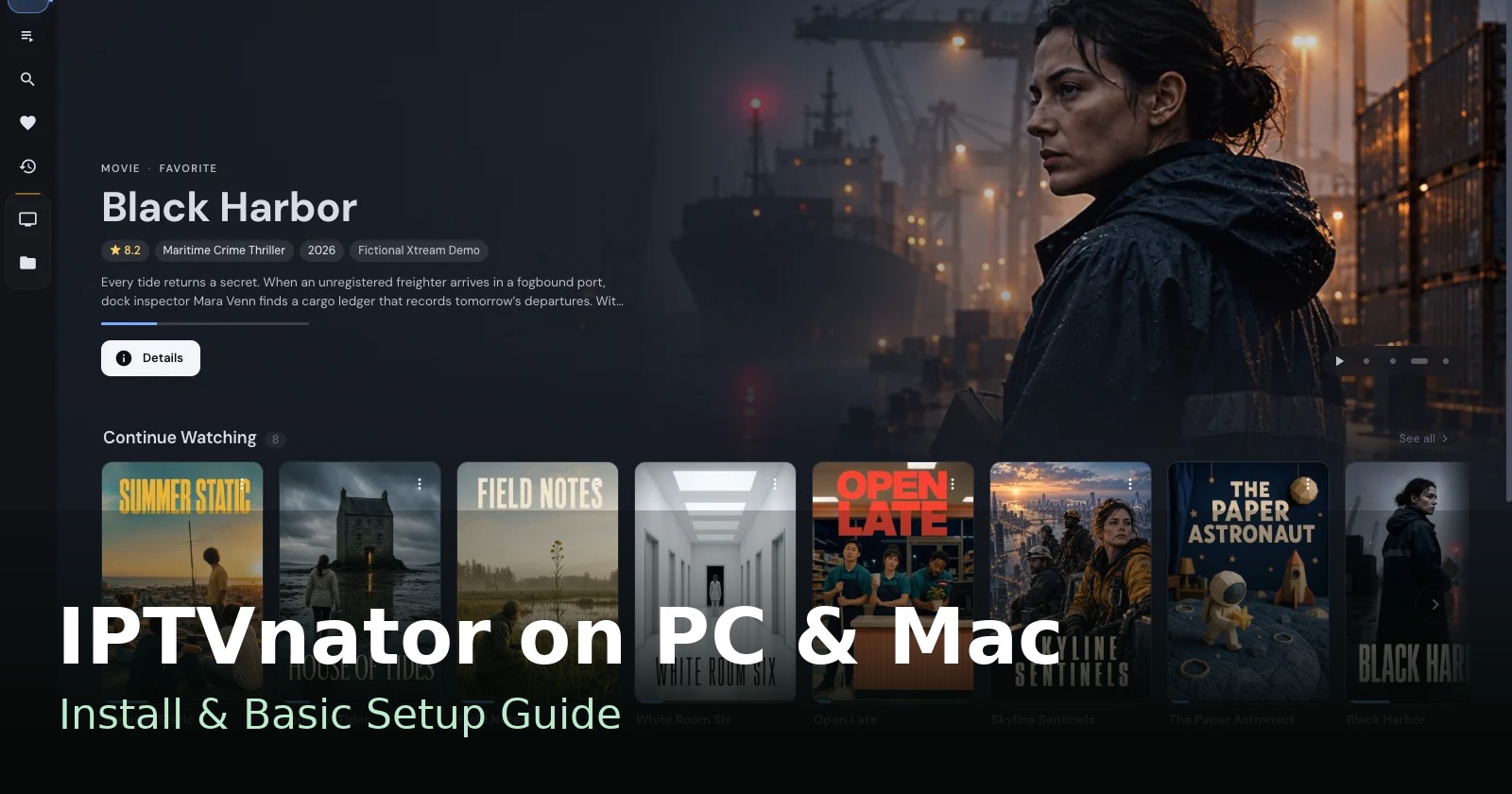
IPTVnator is a free IPTV player for Windows and Mac computers (Linux too). This guide sets it up the recommended way: your Xtream Codes login for the full library and TV guide, and VLC as the player so streams play properly.
Important: IPTVnator is only a player. It comes with no channels and no account, and there is nothing to buy. There is no such thing as an “IPTVnator subscription”.
- Before You Start: What You Need
- Install VLC (the Recommended Player)
- Install IPTVnator
- Set the Player: VLC or Embedded MPV
- Add Your Xtream Codes Account
- The TV Guide (EPG)
- Test Everything
- Check Your Account Details
- Troubleshooting
- M3U Playlists (Only If That’s All You Have)
- Android, Phones & Tablets
1. Before You Start: What You Need
You need three pieces of information from your provider. Together they are your Xtream Codes login:
| Piece | What it looks like | Notes |
|---|---|---|
| Server URL | http://tv.example-provider.net:8080 | Must include http:// or https:// and the port number |
| Username | janedoe | Case-sensitive: type it exactly as given |
| Password | s3cret | Case-sensitive: type it exactly as given |
If your provider sent one long link ending in get.php or player_api.php, that’s fine. It contains all three pieces, and IPTVnator can pull them out for you (see the shortcut in Step 5).
Keep these private. They are your account credentials. Never post them in a public forum, group chat or bug report.
Why Xtream instead of a plain M3U link? Same account, more from it: Live TV, Movies and Series with posters and descriptions, a built-in TV guide, catch-up where your provider offers it, and an account screen showing your expiry date. A flat M3U file only gives you a channel list.
2. Install VLC (the Recommended Player)
VLC is the player we will tell IPTVnator to use. It handles the stream formats that built-in players often fail on (AC3 audio, MPEG-TS, HEVC/H.265 and some 4K streams).
Windows
- Go to the official site only: videolan.org and download VLC for Windows (64-bit).
- Run the installer (vlc-3.0.24-win64.exe or newer) and accept the defaults.
- Open VLC once from the Start menu so Windows can approve it, then close it.
Mac
- Go to videolan.org and download VLC for macOS. On an M-series Mac, pick the Apple Silicon build.
- Open the .dmg file and drag the VLC icon into the Applications folder.
- Open VLC once from Applications. If macOS asks about an app downloaded from the internet, check that it says VLC and click Open.
VLC is free: no account, no trial, nothing to activate. Never download VLC from look-alike sites. VideoLAN is the only official source.
3. Install IPTVnator
Download it only from the official sources. No account or payment is needed:
- Official website: https://4gray.github.io/iptvnator/
- Official downloads: https://github.com/4gray/iptvnator/releases
Windows
- Download iptvnator-0.24.0-windows-x64-setup.exe (or the newest version), about 200 MB.
- Run it and accept the defaults. (If you use winget, you can also install it with
winget install --id=4gray.iptvnator -e.) - Open IPTVnator from the Start menu. If Windows SmartScreen appears, check that it is the official file you just downloaded, then choose More info → Run anyway. Only do this because you got it from the official sources above.
Mac
- Download iptvnator-0.24.0-mac-arm64.dmg (or the newest version). ARM64 means Apple Silicon. Do not pick the Intel x64 build on an M-series Mac.
- Open the .dmg file, drag the IPTVnator icon into Applications, then open it from Applications.
- If macOS asks about opening an app downloaded from the internet, check that it says IPTVnator and click Open.
- If it is blocked (“cannot verify developer”), go to System Settings → Privacy & Security, scroll to Security and click Open Anyway. Only do this because you used the official sources above. Never turn Gatekeeper off completely.
4. Set the Player: VLC or Embedded MPV
Do this before adding your account, so your first channel test already plays properly.
- Open IPTVnator and go to Settings (gear icon) → Playback.
- Under Player, choose VLC.
- Windows: if IPTVnator says it can’t find VLC, point it to
C:\Program Files\VideoLAN\VLC\vlc.exe. - Mac: leave the path at the default. IPTVnator finds VLC in Applications on its own.
- Windows: if IPTVnator says it can’t find VLC, point it to
- Click Save when the Save/Discard bar appears. Closing the window without saving loses the change.
- Leave Stream Format on Auto.
From now on, picking a channel, movie or episode opens it in a separate VLC window. That is normal: IPTVnator is the guide and library, VLC is the picture.
Option B: Embedded MPV (experimental)
In the same Playback settings you can choose Embedded MPV instead. Playback then stays inside the IPTVnator window, with no separate player window, because the MPV engine is built into the app. It handles the same formats as VLC and works very well in our testing. Pick it if you prefer everything in one window, or if a stream gives VLC trouble. You can switch back any time with this one setting.
5. Add Your Xtream Codes Account
- Open Add Playlist and choose the Xtream credentials method.
- Fill in a Title (any name you like), then your Server URL, Username and Password, exactly as given.
- Click Test HTTPS and HTTP and read the result:
- ✅ “Connected. The portal is active.” Perfect, carry on.
- ⚠️ “Connected using HTTP” Works, but the login travelled unencrypted. Usable, and worth mentioning to your provider.
- ❌ “Subscription expired” / “account inactive or credentials incorrect” Re-check your typing (it is case-sensitive). If it still fails, contact your provider.
- ❌ “Could not reach the server” A typo in the URL, the wrong port, the server is down, or no internet.
- Click Add Playlist and let the sync finish. A big catalogue can take a while the first time. After that your library is stored on the computer and reopening is fast.
Shortcut: you only have one long link
Paste the whole get.php or player_api.php link into the Server URL field and leave Username and Password empty. IPTVnator sorts out the three pieces for you. Then test and add as above.
Shortcut: you only have a messy message from your provider
In the Add Playlist window choose Auto-detect, paste the entire message in, and click Fill the form on the Xtream match. Check the filled-in fields against the original, then test and add. The check happens inside the app; your message isn’t sent anywhere. Auto-detect never “fixes” a value, so an almost-right password is still a wrong password. The connection test has the final say.
6. The TV Guide (EPG)
With an Xtream account there is nothing extra to set up: your provider supplies the guide.
- The current programme shows in the channel list, and a schedule timeline sits under the player.
- A channel with no programme info means the provider has no guide data for it. It is not a setup mistake.
- Channels with a Catchup available badge let you play past programmes from the timeline.
- If the guide is wrong for one channel, right-click the channel → Map EPG channel and link it by hand.
7. Test Everything
- Live TV: pick a channel. It should open and play in VLC (or inside the window, if you chose Embedded MPV). Try 3 or 4 channels, including one HD channel.
- Movies: open one, check that the poster page loads and that it plays.
- Series: open a series, pick an episode and check that it plays.
- Guide: check that the current programme shows next to the channels.
- Restart: close and reopen IPTVnator. Your playlist should reappear right away.
- Optional: switch Settings → Playback to Embedded MPV and replay a channel. It should play inside the IPTVnator window. Switch back to VLC if you prefer it.
8. Check Your Account Details
Open Account info from the menu next to your playlist’s name. It shows your expiry date, active / maximum connections and account status. When playback problems come up later, this screen answers half of them, especially the connection limit.
- To refresh your lists: use Refresh Xtream playlist from remote in the same menu. Your favourites and history are kept.
- If your provider changes the server or your password: edit the details in Playlist details instead of adding the account again.
9. Troubleshooting
| Problem | Likely cause | Fix |
|---|---|---|
| Test says credentials incorrect / account inactive | A typo (case-sensitive), or the account has lapsed | Re-type carefully, check Account info, then contact your provider |
| Test says it could not reach the server | Wrong URL or port, server down, or no internet | Check the URL matches exactly what you were given and try again shortly. After 2 failed tries IPTVnator pauses that server for 30 seconds; a manual Retry lifts it |
| Channel won’t play, or sound but no picture | The built-in player is still selected | Settings → Playback → Player = VLC (or Embedded MPV), then Save |
| Channel plays a few seconds, then stops | Connection limit reached (another device is using the account) | Check active vs maximum connections in Account info, and close the other device |
| Worked before, now “Unauthorized” or “expired” | Provider change, or the subscription ended | Check Account info, correct the details in Playlist details, then contact your provider |
| One stream still won’t play, even in VLC | A dead stream at the provider, or a format VLC struggles with | Try another channel in the same category. If only that one fails, it’s the source, not your computer. Also try Embedded MPV: it handles some streams VLC doesn’t, and vice versa |
| Guide is empty on a channel | Your provider has no guide data for it | Nothing to fix at your end |
Privacy rule: never put your server URL, username, password or a full playlist link in a public post, forum or bug report. Describe the error message instead.
10. M3U Playlists (Only If That’s All You Have)
Use Xtream (Step 5) whenever you have a username and password. An M3U link that contains get.php with a username and password in it is the same Xtream account: add it as Xtream with the long-link shortcut and you get the movies, series, guide and catch-up that a flat M3U list can’t carry.
Only for a true M3U file or link with no Xtream login:
- In the Add Playlist window, choose M3U URL (paste the link), M3U file (pick the file) or Raw m3u text (paste it). You can also drag and drop an .m3u or .m3u8 file onto the IPTVnator window.
- Give it a title and click Add Playlist.
- Guide: if the playlist includes its own guide link, the guide imports automatically. If not, ask your provider for a guide (EPG) link, then go to Settings → EPG → Add EPG source, paste it and click Save.
- The player setting is the same as Step 4: Settings → Playback → VLC.
11. Android, Phones & Tablets
There is no official IPTVnator Android app. The official app is for Windows, Mac and Linux computers only. Anything in an app store, APK site, video or blog claiming to be an “official IPTVnator Android app” is not the developer’s app. Don’t install it.
IPTVnator does have a web version you can open in a phone or tablet browser at https://iptvnator.vercel.app/. It is a lighter version: browser playback only, no VLC or Embedded MPV, and some features are missing. It’s fine for a quick try, but it is not a replacement for a proper player app on an Android TV box or Firestick.
Official Sources
- IPTVnator website and downloads: https://4gray.github.io/iptvnator/ and GitHub releases
- Xtream Codes setup guide: https://4gray.github.io/iptvnator/blog/xtream-codes-setup-guide/
- Why some streams need an external player: https://4gray.github.io/iptvnator/blog/why-external-players-help/
- All IPTVnator guides: https://4gray.github.io/iptvnator/blog/
- VLC: videolan.org (VideoLAN, the only official VLC source)
12. Keep Your Connection Healthy
Don’t Forget Your Router!
Your modem/router needs a little help as well. Rebooting your router regularly clears out stale connections, resets memory buffers, and prevents buffering issues for smooth streaming.
Read more: Why You Should Reboot Your Router Regularly for Smooth Streaming
Live in the country? Going camping?
Traveling in a motorhome?
Get Starlink: High-Speed Internet
✓ Quick and easy setup
✓ No long-term contracts
✓ Use multiple devices