
Hey everyone!
If you’ve been following our guides, you already know our golden rule for smooth streaming: regular maintenance makes all the difference!
We’re always reminding you to jump into your settings, clear app caches, and force stop background apps on your Android TV boxes or streaming devices — the easiest way to clear digital clutter, free up RAM, and stop buffering or freezing.
But today, let’s talk about the other half of your streaming setup: your Wi-Fi router or modem — the piece that’s often tucked in a corner, buried behind the TV, and completely forgotten!
Your Router is a Tiny Computer (and It Gets Tired Too)
We recently came across a great article over at Engadget discussing why regularly restarting your router is so important. It really hit home for us because it fits right into the routine maintenance habits we always advocate!
Think about it: whether you’re using a fiber unit like the Bell Giga Hub or a cable modem like the Rogers Xfinity Ignite Gateway, that device runs non-stop, 24/7 — juggling connections for your phones, tablets, smart TVs, streaming boxes, and smart home gadgets, all at once.
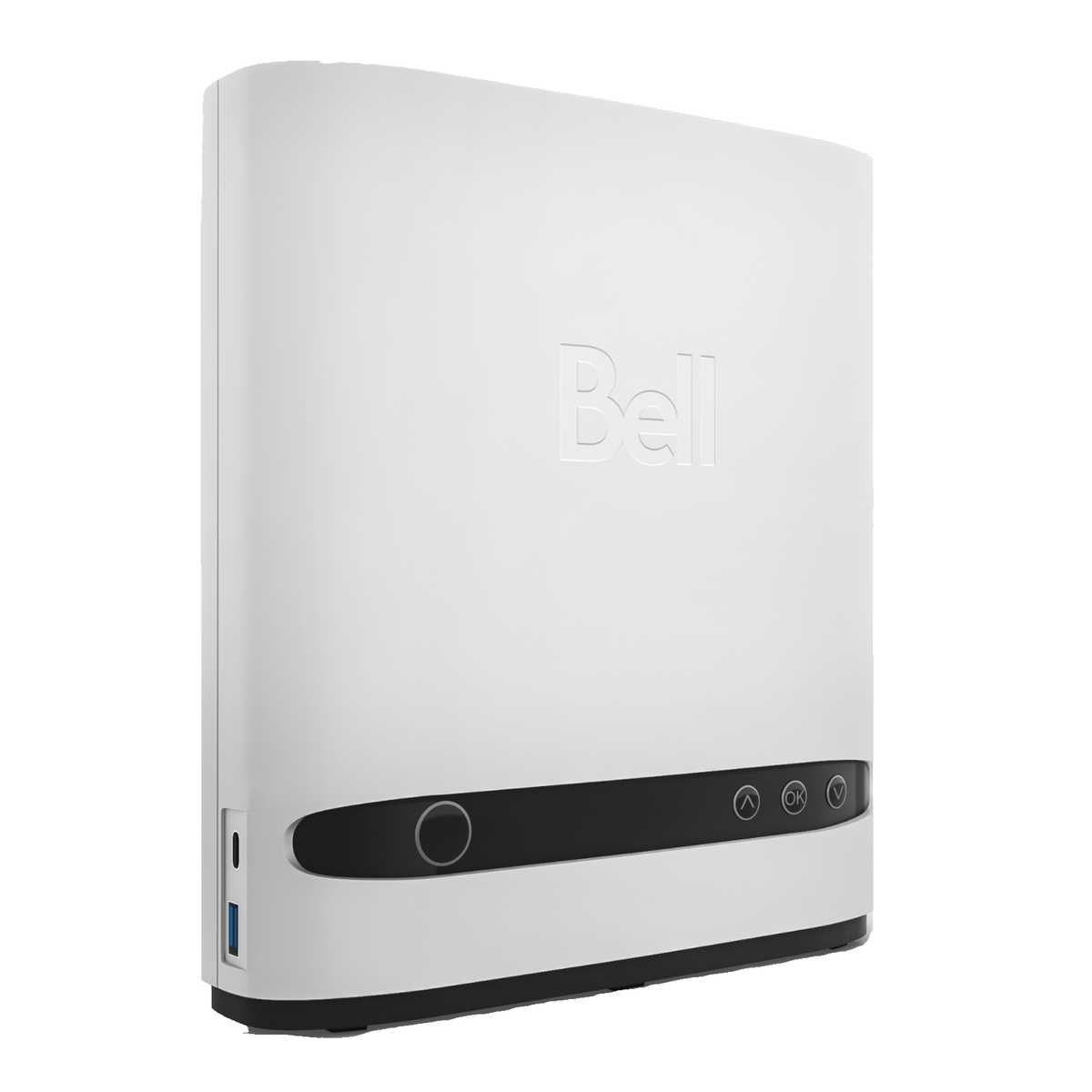
The Bell Giga Hub fiber modem.
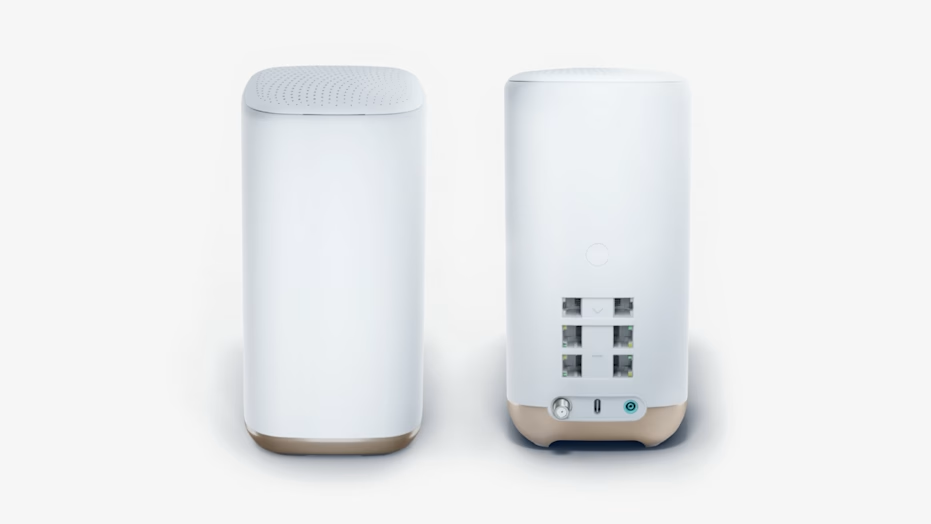
The Rogers Xfinity Ignite gateway.
Whether you use Bell, Rogers, or your own standalone router, giving it a periodic break keeps your whole network running at peak speed.
Just like your phone or streaming device, your router has its own processor and memory (RAM). Over weeks and months of heavy streaming and downloading, temporary files pile up, memory gets bogged down, and background communication channels start to clog.
What Actually Happens When You Restart Your Router?
Unplugging that power cord for under a minute does a lot more than just reset your blinking lights. Here’s what’s actually happening under the hood:
- 🧹 Flushes Volatile Memory (RAM): Just like force-stopping apps and clearing cache on your Android box, a router reboot clears out stored temporary files and refreshes system memory.
- 📡 Finds a Cleaner Wi-Fi Channel: When your router boots back up, it automatically scans nearby Wi-Fi signals in your neighborhood and switches your home network to the path with the least amount of wireless interference.
- 🔄 Refreshes Your ISP Connection: It re-establishes a crisp, fresh connection with your Internet provider and cleans up stale IP address assignments across your household devices.
- 🔒 Boosts Security: Cyber experts—including security teams at the NSA and FBI—officially recommend regular reboots. Power-cycling purges temporary, memory-resident malware that can secretly lurk in router RAM.
Make It a Routine: The EverythingStreaming Maintenance Habit
You don’t need to wait until your stream starts buffering during movie night to take action. Make router care a simple part of your standard home Tech Tune-Up:
💡 The Quick EverythingStreaming Tune-Up Checklist:
- On your TV / Streaming Box: Force stop unused apps and clear app caches regularly.
- On your Router/Modem: Give it a quick 30-to-60-second power cycle once a month (or set up automatic overnight reboots in your router app settings if available!).
💡 Pro tip: For the deepest reset, unplug the power adapter directly from the wall outlet — not just the back of the router — for 30 to 60 seconds. This lets the internal capacitors fully drain, completely refreshing your network’s memory.
How to Do a Proper Hard Restart
It’s super easy, but order matters if you have separate equipment!
- Unplug the power: Pull the power cord out of the back of your modem or router (don’t just press a standby/power button).
- Wait 30 to 60 seconds: This lets all the power fully drain from the internal components so the memory completely clears.
- Plug back in and wait: Give it 2 to 3 minutes to fully boot back up, reconnect to your provider, and establish your Wi-Fi channels before testing your connection.
Source Credit: Shoutout to Engadget for their helpful piece highlighting router reboot security and network health! Staying informed helps all of us enjoy faster, safer, and uninterrupted streaming.
Router Reboot: Quick FAQs
How often should you reboot your router or modem?
Once a month is a solid baseline for most households. If you stream heavily or have a lot of connected devices, rebooting every two weeks can keep things running even smoother.
Does rebooting my router actually improve streaming speed?
Yes. A reboot clears clogged memory, finds a cleaner Wi-Fi channel, and refreshes your connection with your provider — all of which can cut down on buffering and lag. Just make sure any VPN you’re running isn’t the one slowing you down instead.
Is it bad to leave my router running all the time?
Not at all — routers are built to run continuously. The key is giving it periodic breaks with a quick reboot, rather than leaving it completely untouched for months on end.
Got questions about keeping your network fast, or just want to talk shop? Book a free virtual appointment and we’ll help you get everything running smoothly.
— The EverythingStreaming Team
Black Friday Deal: IPVanish’s biggest discount of the year is live on every plan.
Protect your privacy while streaming. Lock in your savings today.


One Comment